Access the Style Control settings from: Admin → Extensions → Template Manager → (J15) rt_halcyon_j15 or (J17) rt_halcyon → Settings
Simple configure the options, then save and Gantry will automatically load the modified preset to your site.
A Color Chooser template uses CSS color values, combined with transparent overlay images, to determine its color and style. Therefore, you can change the entire color scheme via the Gantry Administrator. The available options are outlined below:
With Gantry, the ability to assign a certain style to an individual page has never been easier and/or more efficient. Just follow these simple steps:
There are 80 module positions. If no module is published to a position, it will not appear, collapsing the entire area.
Non-Standard Elements
There are non-standard elements that are injected into the template grid structure when enabled via the template parameter, such as the logo into header-a. These features stack vertically with any modules published to that position.
You can change the positions of these elements at Extensions → Template Manager → (J15) rt_halcyon_j15 or (J17) rt_halcyon
Layout Control
Control all modules positions with Gantry, in terms of widths within the module row, and left/right/middle placement for the mainbody/sidebar area.


Preview Positions
View all module positions live by appending ?tp=1 or &tp=1 to the end of your URL such as http://yoursite.com/index.php?tp=1.
The below diagram is of the Module Variations page.
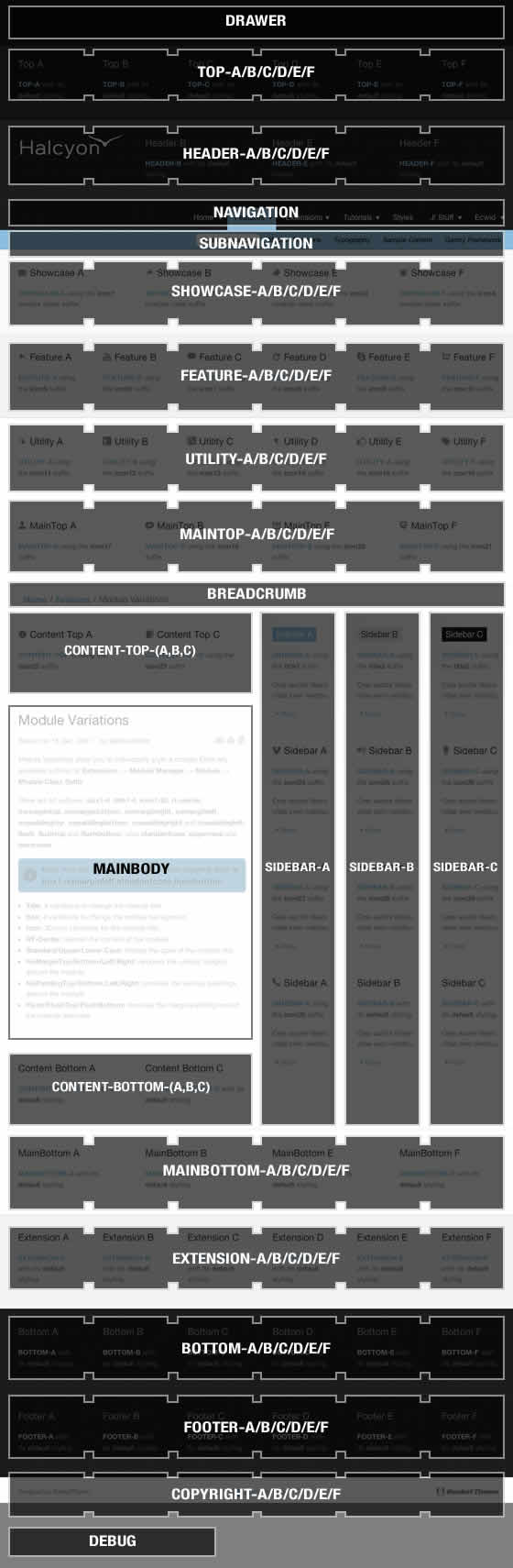
Module Variations allow you to individually style a module Enter any available suffixes at Extensions → Module Manager → Module → Module Class Suffix
There are 59 suffixes: box1-3, title1-3, icon1-30, shadow2-10; rounded, square, rt-center; nomargintop, nomarginbottom, nomarginright, nomarginleft, nopaddingtop, nopaddingbottom, nopaddingright and nopaddingleft; plus standardcase, uppercase and lowercase.
Note: You can compound multiple suffixes together such as box1 shadow2 nomarginleft standardcase.
Page 3 of 3
For over 30 years, DMX-iT has been developing solutions that experts rely on.
Next Day Air Shipment orders must be placed before 1pm PST, orders placed after the cutoff time will be handled during the next business day. We cannot guarantee same day shipping.
All DMXiT prices are in US Dollars ($).